My inbox is not a to-do list. Neither is Slack. Neither, honestly, is Google Docs. But somehow the things I actually need to do are scattered across all three, buried under calendar RSVPs, FYI threads, and someone's auto-reply from a trip they took two weeks ago.
So I built something to fix that.
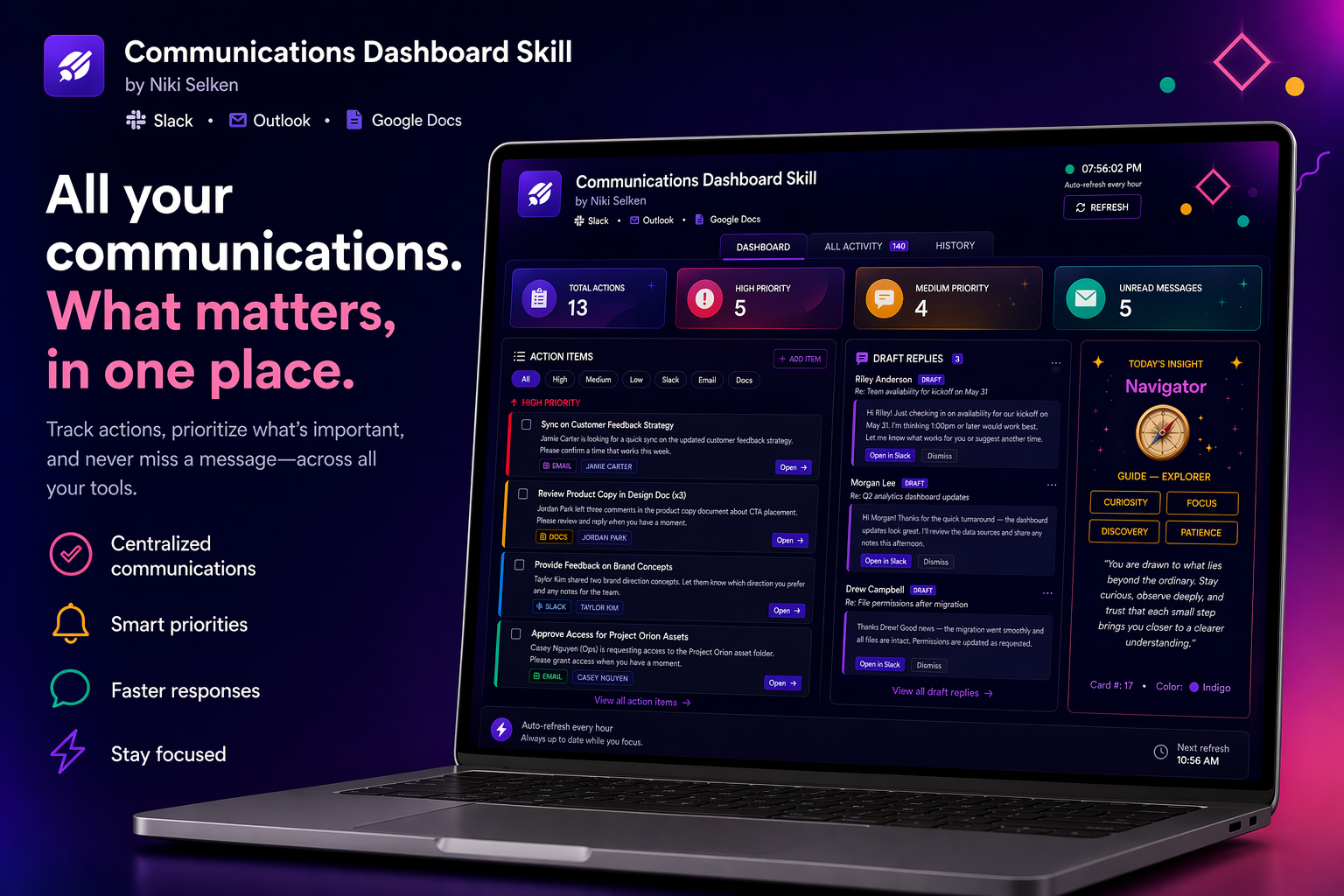
It's called the Communications Dashboard Skill — a custom skill for Claude Cowork that connects to your Slack, Outlook, and Google Docs, pulls everything from the last 24 hours, figures out what actually needs your attention, and renders it all into a single self-contained HTML file. Action items sorted by priority. Draft replies for the messages that need a response, already written and pushed into your Slack Drafts folder. Active documents. A live work journal that never gets overwritten. And an hourly auto-refresh so it stays current throughout the day without you having to think about it.
The first time I ran it, I found a buried timecard submission from a direct report that I had completely missed — sitting under a week of noise. I actioned it immediately. That was the moment I knew this was actually useful, not just technically interesting.
It took way longer than I expected and I learned a lot building it. Some of that was technical — making incremental HTML refreshes that don't destroy your personal data, embedding a full 78-card tarot dataset directly into the file so it's fully portable, getting deterministic card selection to work correctly across time zones. Some of it was conceptual — figuring out what a useful communications dashboard actually is versus what's just noise dressed up as signal.
The feature I didn't expect to love is the Slack draft replies. For every message that needs a response, the skill writes a draft in my voice and pushes it directly into my Slack Drafts folder. My messages are more thorough than they'd be if I dashed them off myself. The tone is friendlier. I'm a better communicator when I'm not writing cold into a thread at 9am. It's a small thing that turned out to matter a lot.
The skill comes in two styles.
Standard is clean and professional — neutral colors, dense information layout, optimized for focus. The kind of thing you'd have open in a corner of your screen during a long work block.
Creative is the one I actually use. Bold Memphis style design, hot pink headers, thick black borders, geometric shapes everywhere. And in the right column, a daily tarot card — drawn from the full 78-card deck, one new card each day, rotating through the whole set over roughly two and a half months. The card isn't a prediction. It's a reflection prompt. A small human moment inside an otherwise very utilitarian tool. I'm an artist who works in tech. I'm allowed to make my dashboard a little weird.
Standard
The Communications Dashboard Skill for Claude Cowork unifies Slack, Outlook, and Google Docs into a self-contained HTML dashboard that highlights what needs attention, drafts replies, and refreshes automatically throughout the day.
Creative
This Communications Dashboard Skill screenshot shows a custom Claude Cowork workflow that filters signal from noise across Slack, Outlook, and Google Docs, then presents action items, active documents, drafted responses, and a portable tarot-enhanced dashboard.
The skill is open source. No company branding, no hardcoded credentials, no external dependencies — just a SKILL.md and a clean architecture that makes it straightforward to fork, re-theme, or extend with new data sources and design tracks.
You can find it on GitHub and install it there or download the SKILL.md file and drag it into Claude Cowork directly.
The full documentation below covers everything: how the action item extraction works, how the incremental refresh preserves your personal state, how to change the colors, how to extend it. There's also a design decisions section that explains the thinking behind choices that might otherwise seem arbitrary — why RSVPs get filtered, why the tarot data is embedded, why deterministic card selection matters.
If you build something with it or fork it into something completely different, I'd love to know. Find me at nikiselken.com or on GitHub.
FUll documentation
A Cowork skill that builds you a personalized dashboard of everything that needs your attention.
What It Does
This skill connects to your Slack, Outlook email, and Google Docs, then generates an interactive HTML dashboard with your action items sorted by priority, recent messages needing replies, active documents, and an optional daily tarot card. It also sets up an hourly auto-refresh during work hours (8 AM–5 PM, weekdays) so it stays current.
Choose Your Style
When you run the skill, you'll be asked which style you want:
Standard: Clean, professional layout. Neutral colors. Optimal for focus and quick scanning.
Creative: Bold Memphis style design — thick borders, saturated colors, geometric shapes, and a daily tarot card reading.
Both styles include the same data, features, and scheduled refresh. The only difference is the visual design.
Features
- Action items extracted from Slack, email, and Docs — sorted by priority (high, medium, low)
- Draft replies for Slack messages needing a response — review, edit, and send right from the dashboard
- Unread emails, Slack messages needing replies, and active Google Docs in one view
- Interactive filters — filter by priority or source (Slack, email, Docs)
- Three-tab layout — Dashboard, Completed log, and an editable daily work journal
- Completed items persist in your browser across refreshes; your journal is never overwritten
- Hourly auto-refresh during work hours keeps your dashboard current
- Live-reload server script — double-click to launch; browser auto-refreshes when data updates
- Daily tarot card (Creative style) — full 78-card deck, one new card each day
How to Install
Via CLI:
npx skills add nikistyxx/comms-dashboard
Or manually:
- Download
SKILL.mdfrom this repo - Open Claude Desktop and start a new Cowork session
- Drag the
SKILL.mdfile into the chat window - Click "Save skill" — that's it
How to Use
Once installed, start a new Cowork session, select a folder for your dashboard output, and say something like:
- "Build me a communications dashboard"
- "What needs my attention today?"
- "Show me my action items from Slack and email"
- "Make me a colorful dashboard with a tarot card"
The skill pulls your latest messages, extracts action items, and generates a self-contained HTML file in your selected folder. You can also ask it to use a specific style directly in your prompt.
Live-Reload Server
The skill creates a Start Dashboard.command file in your dashboard folder. Double-click it in Finder and it launches a local server that opens the dashboard in your browser. When the hourly refresh updates the file, your browser reloads automatically — no manual refresh needed.
Requires Node.js.
Requirements
- Claude Desktop app with Cowork mode enabled
- Slack connector
- Outlook connector
- Google Drive connector
If you don't have these connectors set up yet, Cowork will walk you through connecting them when you first run the skill.
Feature Details
Action Item Extraction
The skill reads your last 24 hours of Slack messages, emails, and document activity and extracts what you actually need to do — not just what arrived. Items are sorted into three priority tiers:
- High — needs action today or tomorrow (explicit requests, urgent DMs, meeting prep)
- Medium — this week (ongoing discussions, review requests, follow-ups)
- Low / FYI — informational, confirmations, background context
Calendar RSVPs and automated notifications are filtered out by default — they clutter action lists without adding value.
Slack Draft Replies
For every Slack message that needs a response, the skill drafts a reply in your voice and pushes it directly into your Slack Drafts folder. Each dashboard card has an "Open Draft" button that opens the pre-written draft in your Slack desktop app — ready to review and send with one click.
Three-Tab Layout
Both styles include three persistent tabs:
- Dashboard — live action items, draft replies, emails, and docs
- Completed — a log of checked-off items with timestamps, plus a daily summary (Wins, New Connections, What I Got Done)
- History — an editable work journal with one entry per day, built automatically from the daily summary. Entries are never overwritten by the auto-refresh.
Persistent State
Everything you do — checking off tasks, dismissing drafts, adding custom items, editing your work journal — is saved in your browser's localStorage indefinitely. Hourly refreshes that rewrite the dashboard data never touch your personal state.
Creative Mode: Daily Tarot Card
In Creative style, a tarot card of the day appears in the right column alongside your draft replies. The card is selected deterministically from a full 78-card dataset (22 Major Arcana + 56 Minor Arcana) using the day of year as an index — so you see a different card each day and cycle through the full deck roughly every 2.5 months.
Each card includes a meaning written in the voice of grounded, poetic reflection — not fortune-telling, but a prompt. No card reading includes personalized details, names, or confidential information from your messages.
Auto-Refresh Schedule
After building the dashboard, the skill sets up a scheduled task that refreshes it every hour during work hours (8am–5pm, weekdays). The refresh is incremental — it updates only the dynamic sections using targeted find-and-replace, never rewriting the full file.
Confidentiality
The skill never includes confidential information in the dashboard. If a message is marked sensitive, contains budget figures clearly meant to be private, or includes information obviously not intended to be shared, the skill describes the topic generally without exposing the details.
How It Works
| Step | What Happens |
|---|---|
| 1. Style selection | You choose Standard or Creative (or the skill infers from your phrasing). |
| 2. User name | Pulled from your Slack profile to personalize the dashboard header. |
| 3. Data pull | Slack, Outlook, and Google Docs are queried simultaneously for the last 24 hours. |
| 4. Action item extraction | All messages and activity are analyzed and categorized by priority. RSVPs and noise are filtered out. |
| 5. Draft replies | For messages needing a response, a draft is written and pushed to Slack Drafts. |
| 6. HTML generation | A fully self-contained HTML file is built with all data embedded inline. |
| 7. Daily log | A persistent daily-log.md file is created or updated in the same folder. |
| 8. Schedule | An hourly auto-refresh task is set up to keep the dashboard current. |
Setup & First Run
The first time the skill runs, it will ask for permission to access your Slack, Outlook, and Google Drive connectors. After the dashboard is built, click Run Now on the scheduled refresh task to pre-approve permissions — this ensures future hourly refreshes run automatically without pausing to ask.
The dashboard HTML file is saved to your workspace folder. Open it in any browser, or double-click Start Dashboard.command for live auto-refresh (requires Node.js).
Customization
Standard Style: Changing Colors
The Standard dashboard uses CSS custom properties at the top of the file. To retheme it, change the values in the :root block:
| Variable | Default | Controls |
|---|---|---|
--primary |
#2563EB |
header, links, active states, KPI accent |
--dark |
#0F172A |
text, dark surfaces |
--high |
#EF4444 |
high priority items |
--medium |
#F59E0B |
medium priority items |
--green |
#10B981 |
docs source, success states |
--radius |
8px |
border radius on all cards |
Creative Style: Core Colors
The Creative dashboard uses hardcoded Memphis colors for intentional design fidelity:
- Hot Pink
#FF6B9D— header, primary accent - Yellow
#FFD93D— KPI cards, geometric shapes, tarot - Coral
#FF6B6B— high priority - Mint
#55E6C1— docs, success states - Lavender
#A29BFE— Slack source, draft replies - Dark Navy
#1A1A2E— borders, dark backgrounds, all text
Tarot Cards
The full 78-card dataset is embedded directly in the Creative dashboard HTML as a JavaScript constant — no external file required. To update card meanings, edit the TAROT_CARDS array in the HTML.
Card selection uses day_of_year % 78 — deterministic, no randomness, same card for the full day regardless of refresh count.
Work Hours
The auto-refresh schedule defaults to 8am–5pm on weekdays (cron: 0 8-17 * * 1-5). To change this, update the scheduled task with a new cron expression.
Open Source
This skill has no branding dependencies — no company-specific colors, fonts, URLs, or API keys are hardcoded into the skill logic. Fork it, extend it, retheme it.
What's Included
SKILL.md— the complete skill definition used by Claude Cowork- Full 78-card tarot dataset embedded in the Creative track
- Standard track with CSS custom properties for easy theming
- Scheduled task template for hourly auto-refresh
- Live-reload server script (
Start Dashboard.command)
What You'd Need to Add
- Your own Slack, Outlook, and Google Drive connector credentials
- A Cowork-compatible Claude instance with connector access
Extending It
- New data source — add a Step 2 section with a new connector and wire its items into the action item extraction logic
- New design track — add a Step 5C section with its own design system and layout, then add it as a choice in Step 0
- New tarot-adjacent feature — the card slot in Creative mode can hold any kind of daily prompt, quote, or insight. The selection mechanism (
day_of_year % array.length) works for any dataset.
Design Decisions
Why two styles? Different people work differently. Standard is optimized for information density and focus. Creative uses visual energy to make the daily review feel less like a chore, and the tarot card adds a human moment of reflection to an otherwise utilitarian tool. Neither style compromises the underlying data.
Why incremental refresh? A naive implementation would rewrite the full HTML file on each refresh — destroying completed task logs, custom-added tasks, and edited journal entries. Incremental refresh uses targeted find-and-replace to update only the live data sections, leaving everything user-generated intact.
Why embed the tarot data? Early versions referenced an external JSON file, which created a deployment dependency. Embedding the 78-card dataset directly in the HTML makes the dashboard fully portable — copy the file anywhere and it works.
Why deterministic card selection? day_of_year % 78 means the tarot card is stable for the entire day regardless of refresh count, and the full deck cycles predictably with no repeats within a cycle (~2.5 months).
Why filter RSVPs? Calendar RSVPs are the single biggest source of action-item clutter. "Chris accepted the meeting" is not something you need to do. This skill explicitly identifies and excludes RSVP-only emails and calendar notifications, keeping the action list focused on genuine work.
Questions?
Created by Niki Selken. Visit the site for more work.